
How to Check PM Laptop Scheme Application Status & Upload Pending Documents
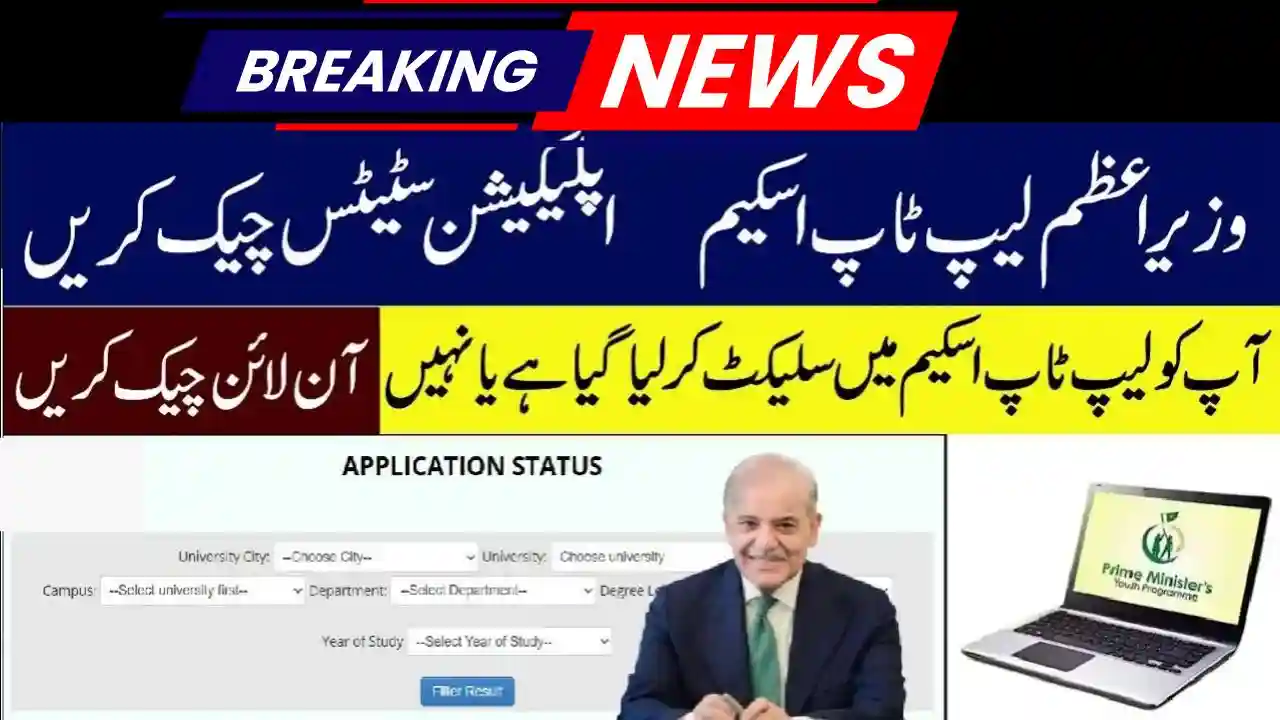
How to Check PM Laptop Scheme Application Status & Upload Pending Documents is one of the most impactful student welfare initiatives launched by the Government of Pakistan. The scheme aims to empower talented students by providing free laptops to support digital learning, research, and skill development.
Many students successfully apply for the scheme but later face confusion about checking their application status or uploading missing / pending documents. This detailed guide explains everything step-by-step so you can complete your application without mistakes.
What Is the PM Laptop Scheme?
The Prime Minister’s Laptop Scheme is part of the government’s youth-focused digital initiatives. Under this program, laptops are distributed to eligible students of public sector universities and colleges based on merit and academic performance.
The selection process includes:
- Online application submission
- Verification by the university focal person
- Merit list preparation
- Laptop distribution through universities

Why Checking PM Laptop Scheme Application Status Is Important
After submitting the application, many students assume the process is complete. However, this is not always true.
Checking your application status helps you:
- Confirm whether your application is approved, pending, or rejected
- Identify missing or incorrect documents
- Upload pending documents before deadlines
- Avoid disqualification due to incomplete verification

How to Check PM Laptop Scheme Application Status (Step-by-Step)
Follow these steps carefully to check your application status online:
Step 1: Visit the Official PM Laptop Scheme Portal
Open the official portal using a secure browser.
Step 2: Login to Your Account
Enter:
- CNIC or B-Form number
- Registered email address
- Password
Make sure you use the same credentials you used during registration.
Step 3: Access the Application Dashboard
After login, you will see your dashboard showing:
- Application ID
- Personal information
- Academic details
- Current application status
Step 4: Understand Your Application Status
Your status may appear as:
- Submitted – Application received
- Under Verification – University verification in process
- Pending Documents – Action required from student
- Approved – Eligible for laptop
- Rejected – Not eligible or incorrect data

What Does “Pending Documents” Status Mean?
If your application shows Pending Documents, it means:
- Some documents are missing
- Uploaded files are unclear or incorrect
- Information mismatch between documents and form
This status requires immediate action, otherwise your application may be rejected.

How to Upload Pending Documents for PM Laptop Scheme
Uploading documents is simple if done correctly.
Step 1: Login to Your PM Laptop Scheme Account
Use your registered credentials.
Step 2: Open the “Pending Documents” Section
You will see a list of required documents such as:
- CNIC / B-Form
- University ID Card
- Transcript or Result Card
- Enrollment Certificate
Step 3: Scan Documents Properly
Before uploading, ensure:
- Clear and readable images
- No blur or shadows
- All corners visible
- File size within allowed limit
- Correct format (usually JPG or PDF)
Step 4: Upload Documents One by One
Click upload, select file, and wait for confirmation.
Step 5: Submit for Verification
After uploading all required documents, click Submit. Your status will change to Under Verification.
Common Mistakes to Avoid While Uploading Documents
Many applications are delayed due to small mistakes. Avoid these common errors:
- Uploading expired CNIC
- Using screenshots instead of scans
- Uploading incorrect academic records
- Mismatch between name or CNIC number
- Blurry or cropped documents
Always double-check before final submission.
How Long Does Verification Take?
Verification time depends on:
- Your university’s focal person
- Number of applications
- Accuracy of your documents
Generally:
- Initial verification: 7–14 days
- Final approval: After merit list announcement
Keep checking your dashboard regularly.
What to Do If Application Is Rejected?
If your application is rejected:
- Read the rejection reason carefully
- Contact your university’s focal person
- Correct mistakes if resubmission is allowed
- Keep records of your documents
Rejection does not always mean permanent disqualification.
Eligibility Criteria (Quick Overview)
To qualify for the PM Laptop Scheme:
- Must be enrolled in a public sector university
- Must meet minimum CGPA or merit criteria
- Must have valid CNIC / B-Form
- Must not have received a laptop previously under the same scheme
Tips to Increase Approval Chances
- Apply early
- Upload high-quality documents
- Ensure academic data matches university records
- Stay in contact with university administration
- Monitor email and portal notifications
PM Laptop Scheme FAQs
1. How can I check my PM Laptop Scheme application status?
Login to the official portal using your CNIC and registered email to view status on the dashboard.
2. What does “Under Verification” mean?
It means your documents are being reviewed by the university or authorities.
3. Can I upload documents after the deadline?
Usually no. Upload documents as soon as possible to avoid rejection.
4. What file format is accepted for documents?
Most portals accept JPG and PDF formats within a size limit.
5. Who verifies PM Laptop Scheme applications?
Verification is done by the university’s designated focal person.
6. Can private university students apply?
No, the scheme is for public sector institutions only.
Final Words
The PM Laptop Scheme is a valuable opportunity for students, but success depends on accurate information, timely action, and complete documentation. By regularly checking your application status and promptly uploading pending documents, you greatly improve your chances of approval.
Stay alert, follow the official instructions, and make sure your academic journey continues smoothly with digital support.