Latest Guide on How To Fix WhatsApp Chat Backup Loading/Stuck While Uploading To Google Drive
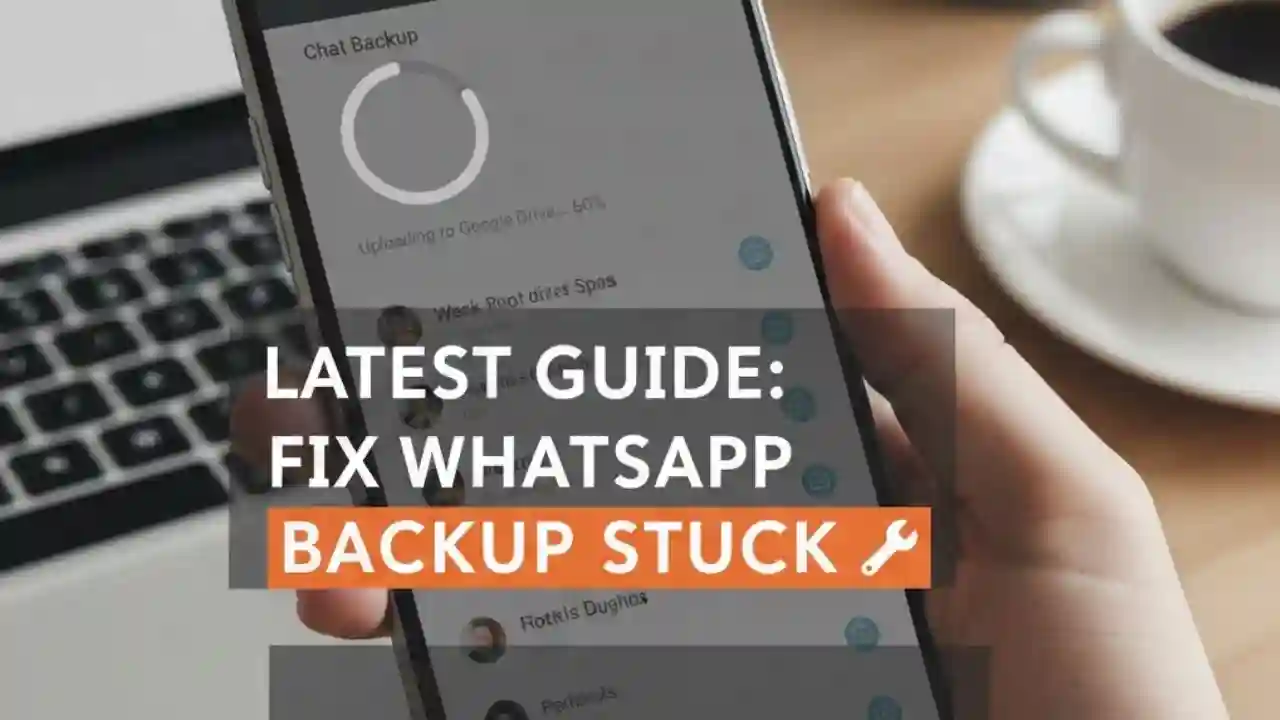
Latest Guide on How To Fix WhatsApp Chat Backup Loading, media files, and important documents. Millions of users rely on WhatsApp automatic backups to Google Drive, especially when changing phones or reinstalling the app. However, one of the most frustrating issues users face is when the WhatsApp chat backup gets stuck, keeps loading, or fails while uploading to Google Drive.
This latest guide explains why WhatsApp backup gets stuck, how to fix it step by step, and how to prevent this issue in the future. If your backup has been stuck for hours or days, this guide will help you solve it safely without losing your chats.
Why WhatsApp Chat Backup Gets Stuck While Uploading
Before applying fixes, it is important to understand the root causes. WhatsApp backups can get stuck due to multiple technical and account-related issues.
Common Reasons for WhatsApp Backup Stuck Issue
- Poor or unstable internet connection
- Insufficient Google Drive storage space
- Corrupted WhatsApp cache or app data
- Outdated WhatsApp version
- Google account sync errors
- Battery optimization or background restrictions
- Large backup size due to videos and media
- Incorrect Google account linked to WhatsApp
Understanding these causes helps you choose the right solution instead of randomly trying fixes.
Check Internet Connection Before Uploading Backup
A weak or unstable internet connection is the most common reason WhatsApp backups remain stuck.
How to Fix Internet Issues
- Switch to a stable Wi-Fi connection
- Avoid public or restricted networks
- Restart your router
- Disable VPN services
- Test internet speed before restarting backup
WhatsApp backups require a continuous connection. Even small interruptions can freeze the upload process.

Ensure Enough Google Drive Storage Space
If your Google Drive is full or near capacity, WhatsApp will not be able to upload backups.
How to Check Google Drive Storage
- Open Google Drive
- Check available storage space
- Compare it with WhatsApp backup size
How to Free Up Space
- Delete old backups
- Remove unnecessary files
- Empty Google Drive trash
- Upgrade storage if needed
Always ensure free space is more than your WhatsApp backup size.

Verify Correct Google Account Is Connected
WhatsApp backups only work with the same Google account that was previously used for backup.
Steps to Confirm Google Account
- Open WhatsApp
- Go to Settings > Chats > Chat backup
- Check the Google account shown
- Ensure it matches your device’s primary account
If the wrong account is selected, the backup may keep loading endlessly.

Update WhatsApp to the Latest Version
Using an outdated version of WhatsApp can cause backup compatibility issues with Google Drive.
Why Updating WhatsApp Matters
- Fixes known bugs
- Improves Google Drive integration
- Enhances backup stability
What to Do
- Open Play Store
- Search WhatsApp
- Install the latest update
- Restart your phone after updating
Updates often silently fix backup-related problems.
Clear WhatsApp Cache Without Losing Chats
Corrupted cache files can interrupt the backup process.
How to Clear WhatsApp Cache Safely
- Go to Phone Settings
- Open Apps
- Select WhatsApp
- Tap Storage
- Choose Clear Cache (NOT Clear Data)
Clearing cache removes temporary files without deleting messages.
Disable Battery Optimization and Background Restrictions
Many Android phones stop WhatsApp from running in the background, which interrupts backups.
Steps to Disable Battery Restrictions
- Open Settings
- Go to Battery
- Select App battery management
- Find WhatsApp
- Set it to No restrictions
This ensures WhatsApp can upload backups even when the screen is off.
Exclude Videos From WhatsApp Backup
Large video files dramatically increase backup size and time.
How to Exclude Videos
- Open WhatsApp
- Go to Settings > Chats > Chat backup
- Turn off Include videos
- Start backup again
This reduces backup size and helps complete the process faster.
Restart WhatsApp Backup Manually
Sometimes the backup process just needs a fresh start.
How to Restart Backup
- Cancel the stuck backup
- Close WhatsApp completely
- Restart your phone
- Open WhatsApp
- Start backup manually again
This clears temporary glitches that freeze the upload.
Check Google Drive App and Services
Google Drive itself may be causing the issue.
Fix Google Drive Problems
- Update Google Drive app
- Clear Google Drive cache
- Ensure Google Play Services is updated
- Restart your device
WhatsApp relies on Google Play Services for authentication and cloud access.
Remove Old WhatsApp Backup From Google Drive
Old or corrupted backups stored in Google Drive can conflict with new uploads.
Steps to Remove Old Backup
- Open Google Drive
- Go to Settings > Manage apps
- Find WhatsApp
- Delete old backup data
After removal, start a fresh backup from WhatsApp.
Last Resort: Reinstall WhatsApp Carefully
If nothing works, reinstalling WhatsApp may fix deep software conflicts.
Important Warning
Do NOT uninstall WhatsApp unless you already have a local backup on your phone.
Safe Reinstallation Steps
- Ensure local backup exists
- Uninstall WhatsApp
- Reinstall from Play Store
- Verify number
- Restore chats
- Start Google Drive backup again
This often resolves stubborn backup issues.
Tips to Prevent WhatsApp Backup Issues in the Future
- Schedule backups when connected to Wi-Fi
- Keep WhatsApp updated
- Avoid low storage situations
- Exclude large videos
- Disable aggressive battery saving
- Backup during low network traffic hours
Prevention is always easier than recovery.
FAQs – WhatsApp Chat Backup Stuck While Uploading
Why is my WhatsApp backup stuck at a certain percentage?
This usually happens due to slow internet, large media files, or Google Drive storage issues.
How long should WhatsApp backup take?
Small backups take minutes, while large backups with media can take several hours depending on internet speed.
Can I close WhatsApp during backup?
No. Closing WhatsApp or switching networks can interrupt the backup process.
Will clearing cache delete my chats?
No. Clearing cache is safe and does not delete messages.
Can I backup WhatsApp without Google Drive?
Yes, WhatsApp also creates local backups on your phone storage.
Why does WhatsApp backup fail repeatedly?
Common reasons include account mismatch, corrupted cache, outdated app version, or background restrictions.
Final Thoughts
A WhatsApp chat backup stuck while uploading to Google Drive can be stressful, but it is usually fixable with the right steps. By checking your internet connection, storage space, app permissions, and Google account settings, you can resolve the issue without losing important chats.
Following this latest guide ensures a smooth, secure, and reliable WhatsApp backup experience—so your conversations remain protected at all times.